
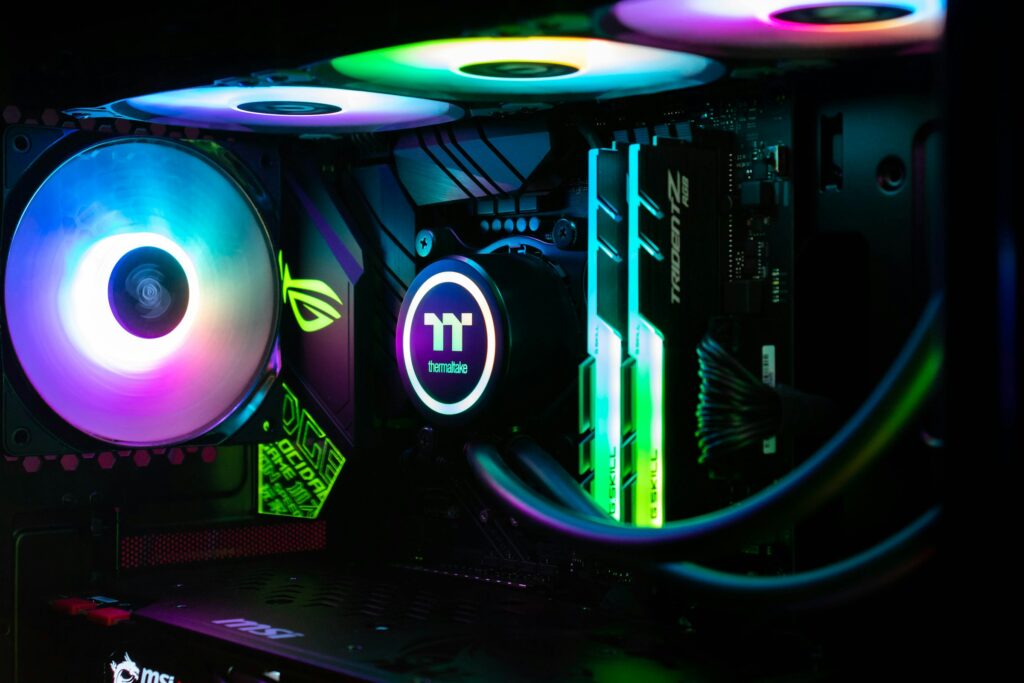
The journey begins long before you touch a screwdriver, with the critical phase of preparation and planning. Ensure you have a clean, well-lit workspace with a non-static surface, such as a wooden table, and gather basic tools like a Phillips-head screwdriver and cable ties. Most importantly, practice the simple habit of grounding yourself by periodically touching the unpainted metal of your computer case to prevent static electricity from damaging sensitive components. Before opening any boxes, carefully lay out all your parts—motherboard, CPU, GPU, RAM, storage, power supply, and case—and verify everything against your packing list. This initial organization is not just about inventory; it builds familiarity with each component, reducing the abstract intimidation of the build and allowing you to visualize the assembly process before you begin.
The true heart of the build commences with the installation of the core components onto the motherboard before it goes into the case, a process often called “breadboarding.” Start by gently unlocking the CPU socket lever on the motherboard and aligning the golden triangle on your processor with the corresponding marker on the socket, allowing the CPU to drop into place without any force. Next, install your RAM by pushing down the latches at each end of the DIMM slots, aligning the notch on your memory sticks, and pressing firmly until you hear a satisfying click on both sides. You will then install your M.2 NVMe SSD, if you have one, by removing the standoff screw, sliding the drive into the slot at a slight angle, and pressing it down before securing it. This outside-the-case approach gives you ample room to work and confirms these vital parts function before committing to the final assembly.
With the CPU, cooler, RAM, and M.2 drive secured, it is time to prepare your case and install the power supply and motherboard. Begin by removing both side panels and, if necessary, the front panel to access all areas freely. Install your power supply into its designated bay at the bottom or top rear of the case, typically with the fan facing an intake vent, and secure it with the provided screws. Before placing the motherboard, you must install the I/O shield—the thin metal plate that came with your motherboard—by pressing it into the rectangular cutout at the back of your case until it snaps securely into place. Then, carefully lower the motherboard onto the pre-installed standoffs inside the case, aligning its rear ports with the I/O shield, and fasten it down with screws to ensure a stable, non-flexing foundation for all other components.
The final phase involves connecting all internal cables, which is often the step that causes the most confusion for new builders. Start by routing the large 24-pin power cable from the PSU to the corresponding socket on the right edge of the motherboard, followed by the 8-pin (or 4+4 pin) CPU power cable to the connector near the top left of the board. Connect your storage drives—both SATA SSDs/HDDs and any additional M.2 drives—to the motherboard and power supply using SATA data and power cables. The most crucial connections are the front-panel headers: a small cluster of pins where you will attach the tiny cables from your case for the power button, reset switch, and status LEDs; consult your motherboard manual for the exact layout, as this is unique to each model. Finally, install your graphics card by removing the appropriate rear expansion slot covers on the case, aligning the card with the top PCIe x16 slot on the motherboard, and pressing down firmly until it clicks, then securing it with screws.
With all hardware installed and connected, you reach the moment of truth: the first power-on. Before closing the case, perform a final check to ensure no loose screws or cables are obstructing any fans. Connect your monitor to the graphics card (not the motherboard), plug in the keyboard and mouse, and then press the power button on your case. If all is well, you will see fans spin up and lights activate, followed by a prompt on your monitor to enter the BIOS/UEFI. Here, you can verify that all components are detected, enable your RAM’s full speed profile (like XMP or EXPO), and set your boot priority. Then, using a prepared USB drive, install your operating system. This successful post is a triumphant conclusion, transforming individual components into a cohesive, powerful machine you built with your own hands, ready for a lifetime of upgrades and personalization.